
How to manage your bookings on Manawa?
Accept, reschedule or decline a request, and find your customers' contact details, everything you can do from the Bookings tab in your back-office, in just a few clicks.
Close a time slot, limit your available spots, block an entire week, in 2 clicks from your back-office. The simple, complete guide.
Welcome to Manawa, the website for booking outdoor activities around the world. From diving to canyoning, we connect adventure enthusiasts with professional local instructors to guarantee unforgettable experiences.
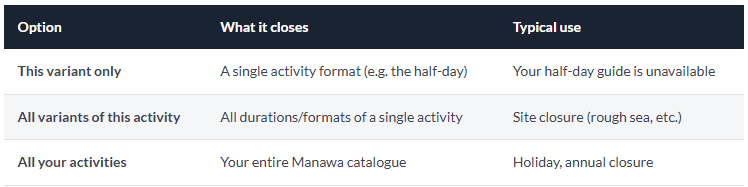
API Connection: If your availability is synchronised via a booking software (Fareharbor, Bokun, Rezdy…), everything is managed by your software. This tool does not apply to you.
You have a private group taking the whole boat this Friday? Your guide is sick on Thursday morning? Only 2 spots left at 9am tomorrow? No need to call Manawa. From your back-office, you can handle all of this in a matter of seconds, at any time of day.
This guide walks you through the "Manage closures and stock" tool step by step, so you can keep your Manawa calendar perfectly up to date.
Log in to backoffice.manawa.com, then go to the Activities tab. Select the relevant activity and look for the "Manage closures and stock" block.

Click Edit: you'll be taken directly to your real-time availability calendar.
⚠️ Important: Every change is immediate and shows up instantly on your Manawa pages. If in doubt, email us at [email protected] before making any changes.
Once inside the tool, you'll see a monthly calendar showing all your time slots. Colours immediately tell you the status of each slot:
Green = slot open, bookable Red = slot closed or blocked Orange = limited spots remaining
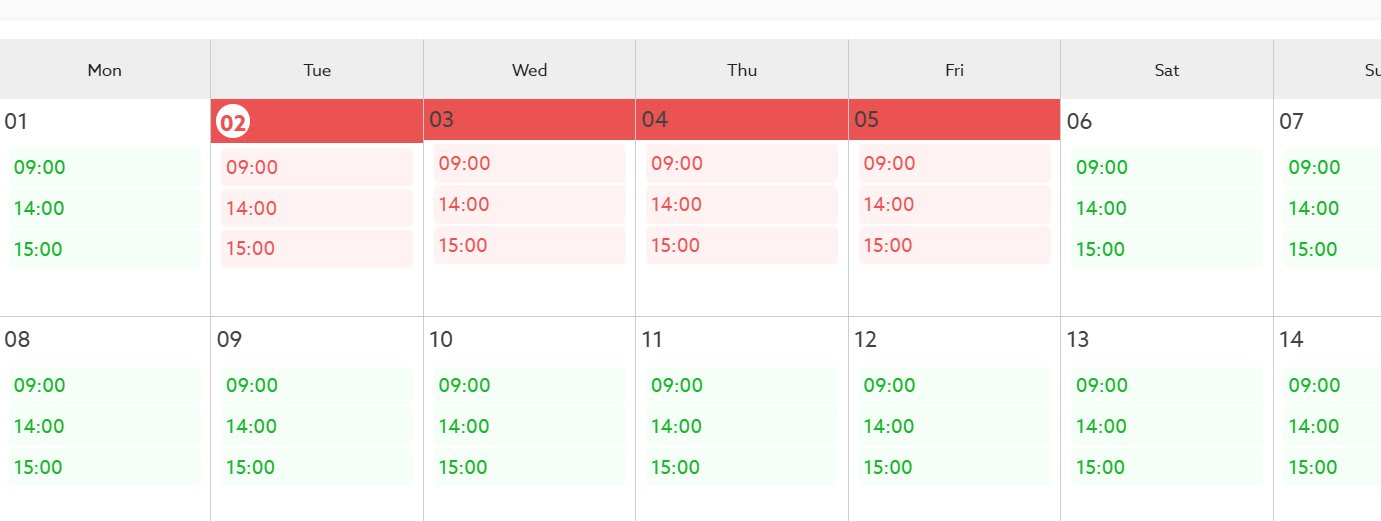
A quick glance is all it takes to check whether your Manawa calendar is consistent with your actual schedule.
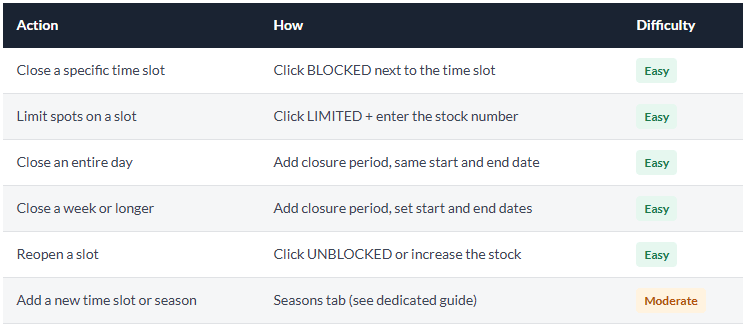
You want to block only the 3pm slot on March 18th, without touching anything else? You can do it down to the minute.
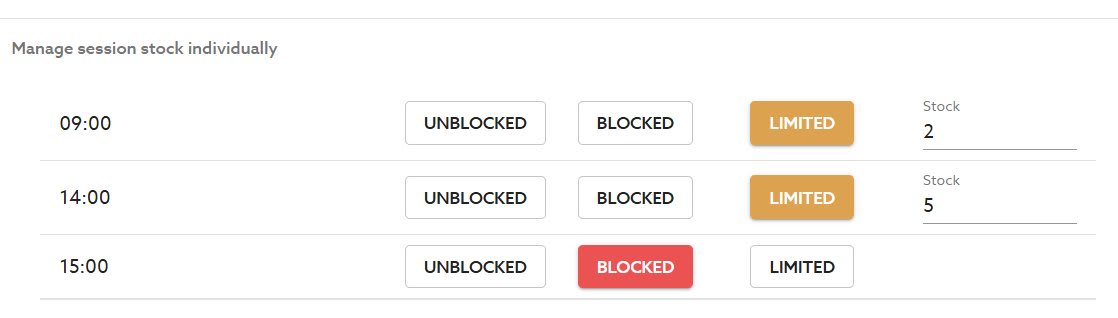
💡 Pro tip: Need to reopen the slot later? Simply click "UNBLOCKED" to put it back on sale immediately.
Only 2 spots left at 9am and 5 spots at 2pm this weekend because you already have groups elsewhere? Update it in real time to prevent overbooking.
✅ Good to know: If you drop to fewer than 5 spots, a "Limited availability" orange badge automatically appears on your Manawa page. This is a great conversion lever, it creates a genuine sense of urgency for customers.
You have a group of 8 on Tuesday morning. Your max capacity is 10. Only 2 spots remain: set the 9am slot to LIMITED with stock = 2.
Last-minute cancellation: you get 3 spots back. Switch the slot back to UNBLOCKED or increase the stock accordingly.
Away at a training course for a whole week? Closing due to exceptional weather? You can block several days at once, without manually handling each slot one by one.
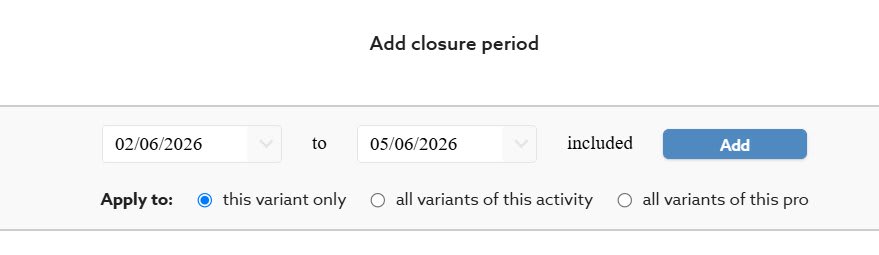
💡 Tip, closing a single day: To block just one day, set the same date as both start and end. E.g. from 18/03/2026 to 18/03/2026 included → the entire day of March 18th is closed.
A customer cancels their booking and you get spots back? No problem — you can put those slots back on sale in seconds.
✅ A winning habit: As soon as you receive a cancellation, open your back-office and put the spots back online. The sooner you do it, the sooner another customer can book, and you recover that revenue.
If you need to add new time slots or new seasons (e.g. you're now opening on Sundays), that's done in the Seasons section of the back-office. See the dedicated guide: How do you set up your prices and seasons on Manawa?
If you use this tool regularly and your Manawa calendar consistently reflects your real availability, you can take things one step further.
Get in touch with us at [email protected] to discuss:
Bookings are validated automatically, with no action needed on your part. You earn the "Instant Confirmation" label, a strong trust signal for customers browsing your page.
Reduce the minimum lead time before booking to accept customers right up to a few hours before the activity, ideal for filling same-day slots.
💡 The virtuous cycle: An accurate calendar → fewer cancellations → better partner rating → eligibility for instant confirmation → more automatic bookings → more revenue. It all starts with 2 minutes of updates.
After every change, take 30 seconds to verify that everything looks correct from the customer's side:
💡 Note: The "from" price shown on results pages may take a few hours to refresh. However, closures and stock changes are instant in the booking tunnel.
Something unclear? A configuration that doesn't look right? The Manawa team is here for you. Email us at [email protected] and we'll set up a quick call to walk you through the tool.

Head of Supply & Outdoor Partnerships at Manawa, I am passionate about outdoor activities and dedicated to making them more accessible to convince everyone to go out and discover them!
Accept, reschedule or decline a request, and find your customers' contact details, everything you can do from the Bookings tab in your back-office, in just a few clicks.

Plan your trip to Corsica with our complete guide covering the best places to visit, outdoor activities, itineraries, practical tips and everything you need to know before you go.

Discover the best things to do in Propriano, Corsica, from canyoning and kayaking to scuba diving, beaches and boat trips. Get practical tips and find the best outdoor adventures fo

Discover a new way to explore Europe: checkyeti and Manawa are joining forces to offer even more outdoor adventures across the continent.

Choosing between rafting and hydrospeed for your next river trip? Discover the key differences to find your perfect whitewater match.

Activity couldn't go ahead? Trigger a full refund directly from your back-office in 3 clicks, no email, no waiting. The quick and complete guide.